User Properties
User properties are key-value pairs that can be associated with a user. They can be used to store any kind of data that you want to associate with a user, such as preferences, settings, achievements, progress, etc.
Defining User Properties
User can be defined in the Defs tab of the Database Manager window found at Foundry -> Database -> Manager.
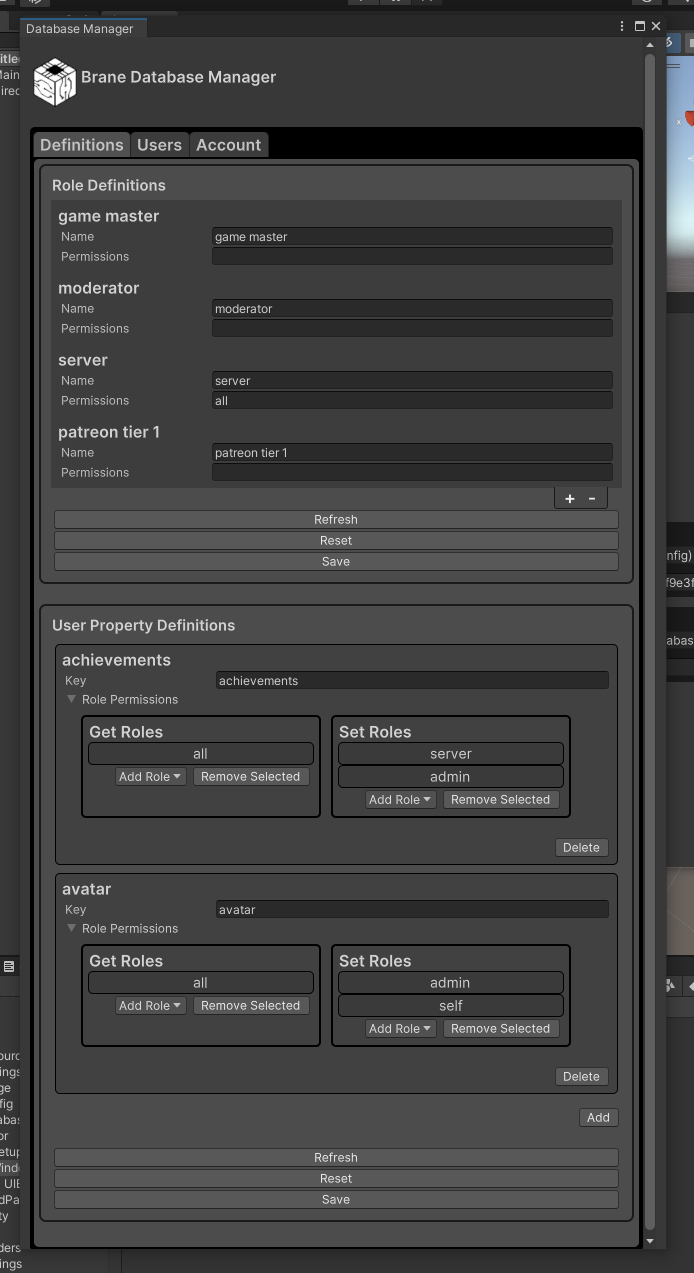
To define a user property, click the Add button at the bottom of the User Property Definitions Section. This will add a new row to the table where you can define the property key.
Role permissions can, and should be set for each user property. This allows you to control which users can read and write to each property.
Users without any access to a property won't even be able to detect if it exists.
We suggest only allowing users to directly write to properties that are not critical to the game. For example, you may want to allow users to write to their avatar configuration, but not to their achievements.
There are a few special roles that can be used in the permissions system:
- all - This role is a wildcard for all users.
- self - This represents the user that is making the request. This is useful for allowing users to write to their own properties, but not to other users' properties.
For more secure data, we suggest having a standalone server build sign in with an account that has greater permissions, and then have client users sign in with accounts that have limited permissions. This was, things like achievements can be written to the database by the server, and read by the client, but not written by the client.
Once you're done editing the properties, click the Save button at the bottom of the window to save your changes, you can also reset or refresh to undo changes. Refreshing will also pull in any changes made by other users.
Using User Properties
You can either access the current user's properties implicitly, or supply a user ID to get the properties of another user.
/* Many of the Database functions are async, so you can either use
await in an async function, or in the case of a Unity Coroutine replace
all the await keywords here with something like this:

var task = <function call here>
yeild return new WaitUntil(() => task.IsCompleted);
var result = task.Result;
*/

// User properties are serialized as JSON, so you can use any serializable type, even full objects
[System.Serializable]
struct ExampleUserPropertyData {
    public string favoriteColor;
    public int highScore;
}

public async void ExampleUserPropertyOperations()
{
    // Get or create a session with the database
    DatabaseSession session = await DatabaseSession.GetActive();

    // Get all properties of the current user
    Dictionary<string, object> userProperties = await session.GetUserProperties();

    // Get one property of the current user
    object favoriteColor = await session.GetUserProperty("favoriteColor");
    // or if you know the type
    string favoriteColor = await session.GetUserProperty<string>("favoriteColor");

    // Set a property of the current user
    await session.SetUserProperty("favoriteColor", "blue");

    // Set multiple properties of the current user
    Dictionary<string, object> properties = new Dictionary<string, object>();
    properties.Add("favoriteColor", "blue");
    properties.Add("highScore", 100);

    await session.SetUserProperties(properties);

    // Set an object as a property
    ExampleUserPropertyData data = new ExampleUserPropertyData();
    data.favoriteColor = "blue";
    data.highScore = 100;

    await session.SetUserProperty("exampleData", data);

    // Get the object back
    ExampleUserPropertyData data = await session.GetUserProperty<ExampleUserPropertyData>("exampleData");


    // Get all properties of another user
    Dictionary<string, object> userProperties = await session.GetUserProperties(<user id here>);


    // Set a property of another user
    await session.SetUserProperty(<user id here>, "favoriteColor", "blue");
}
Debugging User Properties
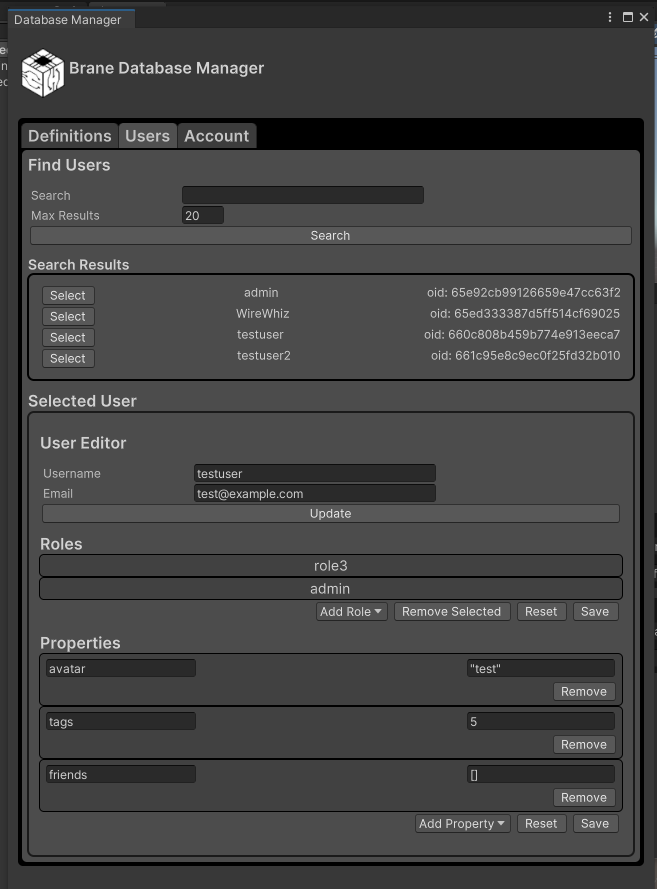
If you need to check the properties of a user, you can use the Users or Account tab of the Database Manager, to view and edit your own properties, or the properties of other users.