Configuration And Management
All of the configuration and management of the Foundry Database is done through the Database Management Window, which can be accessed by navigating to Foundry -> Database -> Manager in the Unity Editor.

Logging In
When you first open the Database Manager, you will be prompted to log in. You should have been given login info for an admin account at the same time we gave you an App Key that can be used for this.
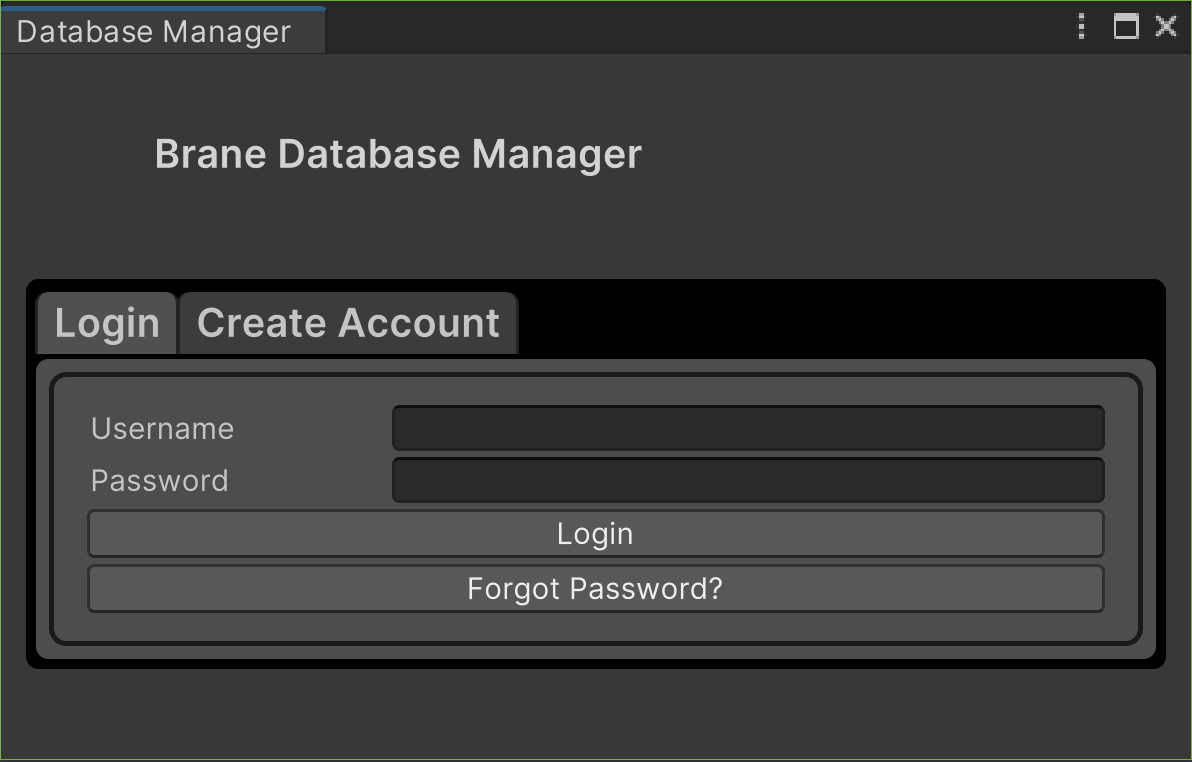
If you want other members of your team to be able to access the Database Manager, you can request for them to use the Create Account tab to create their own account, which you can then grant the appropriate roles to with the aforementioned default admin account.
To reset your password, click Forgot Password? to open a new tab that will prompt you to enter your email. You will be sent an email with a reset code that you can then enter along with your new password.
Defs
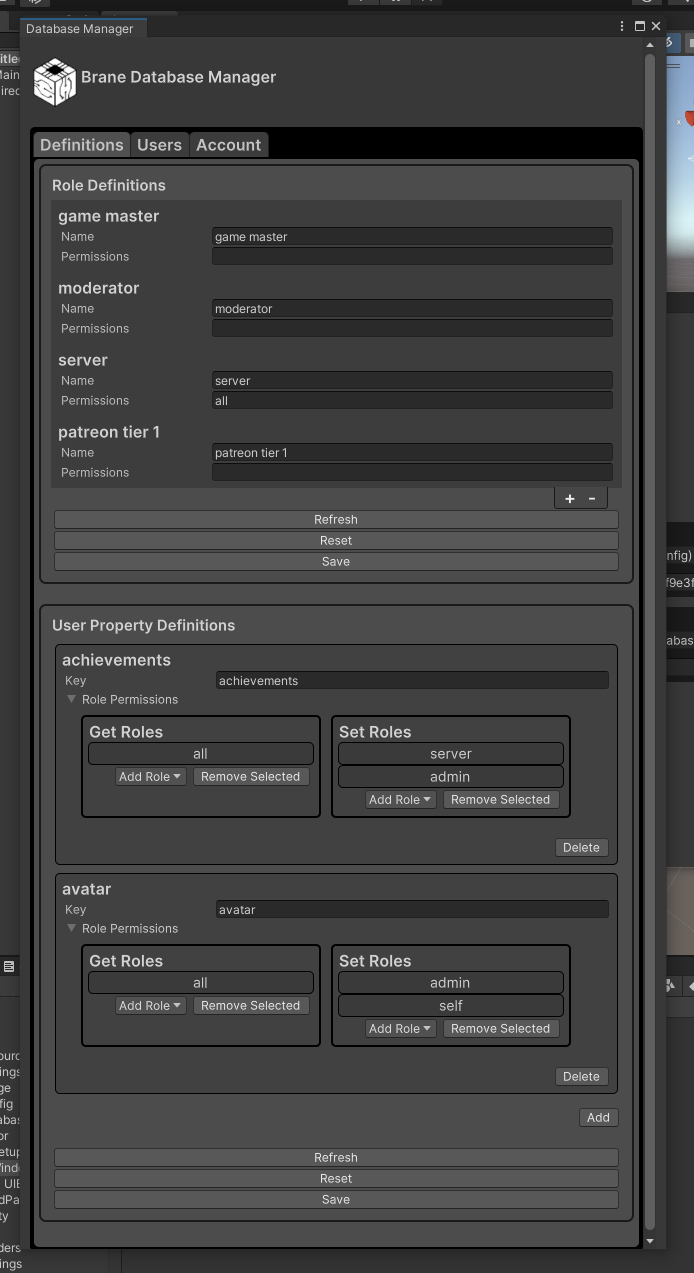
The Defs tab is where you define the properties of your database. This includes User Properties, Roles, and Permissions.
Roles
Roles are used to define what a user can do, and to assign labels.
User Properties
User properties are key-value pairs that can be associated with a user. They can be used to store any kind of data that you want to associate with a user, such as preferences, settings, achievements, progress, etc.
Read more about user properties here
Users
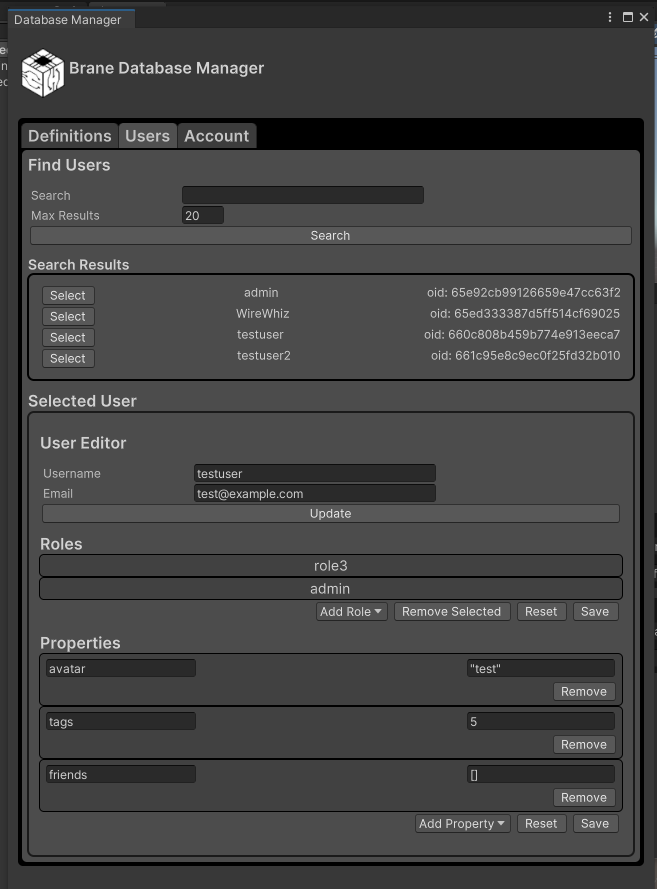
The Users tab is where you can manage the users of your application.
Account
The Account tab is where you can manage your account settings. This is also where you can change your password and log out of the Database Manager.
General
The General tab is where you can chenge the general settings of your application and the database.
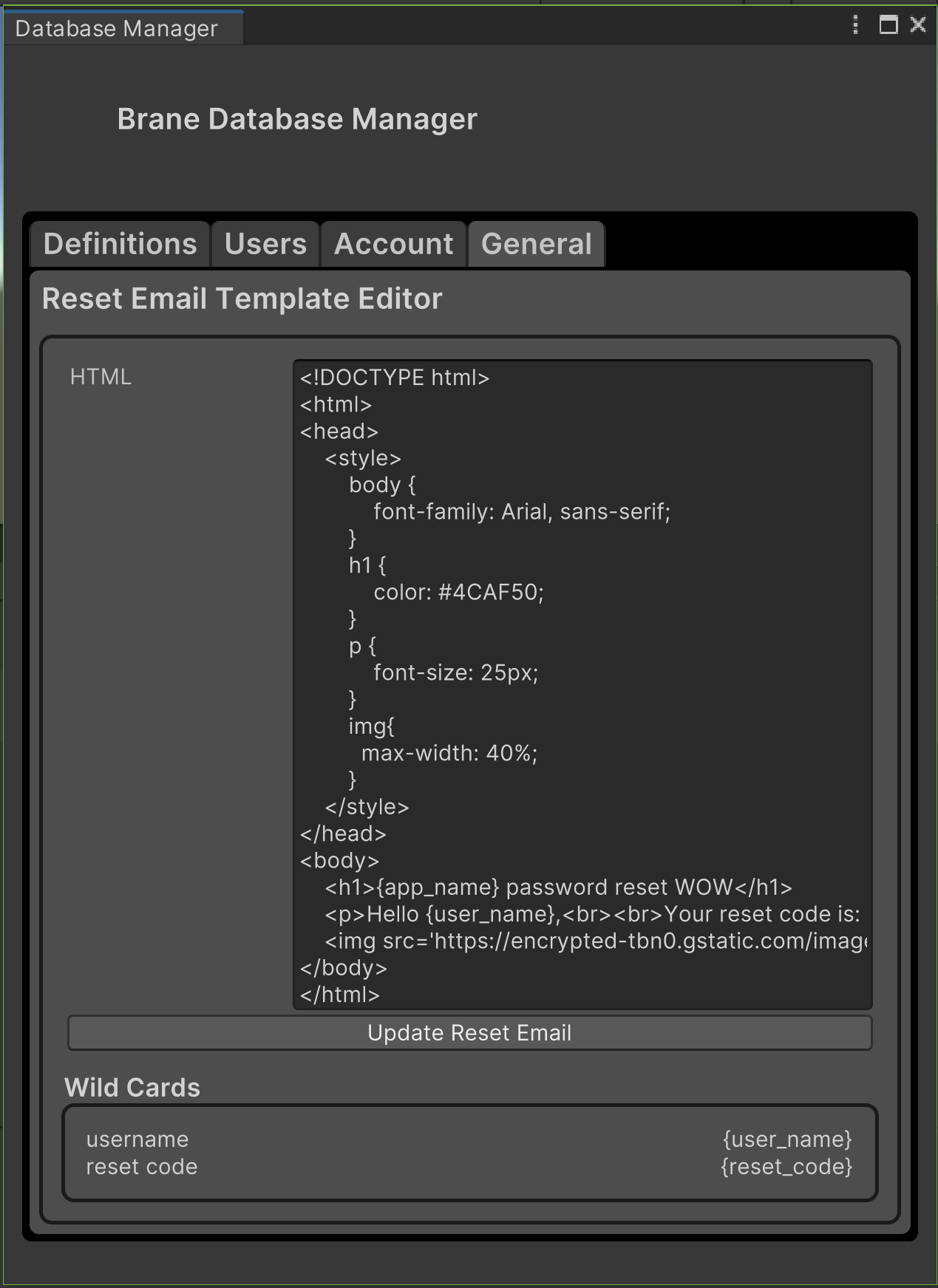
For admins, this includes the Reset Email Template Editor that allows you to customize the password reset emails with your application's branding. There are included Wild Cards that will be replaced with their corresponding value when the email is sent.